KPIs: Track Survey Metrics in Actions
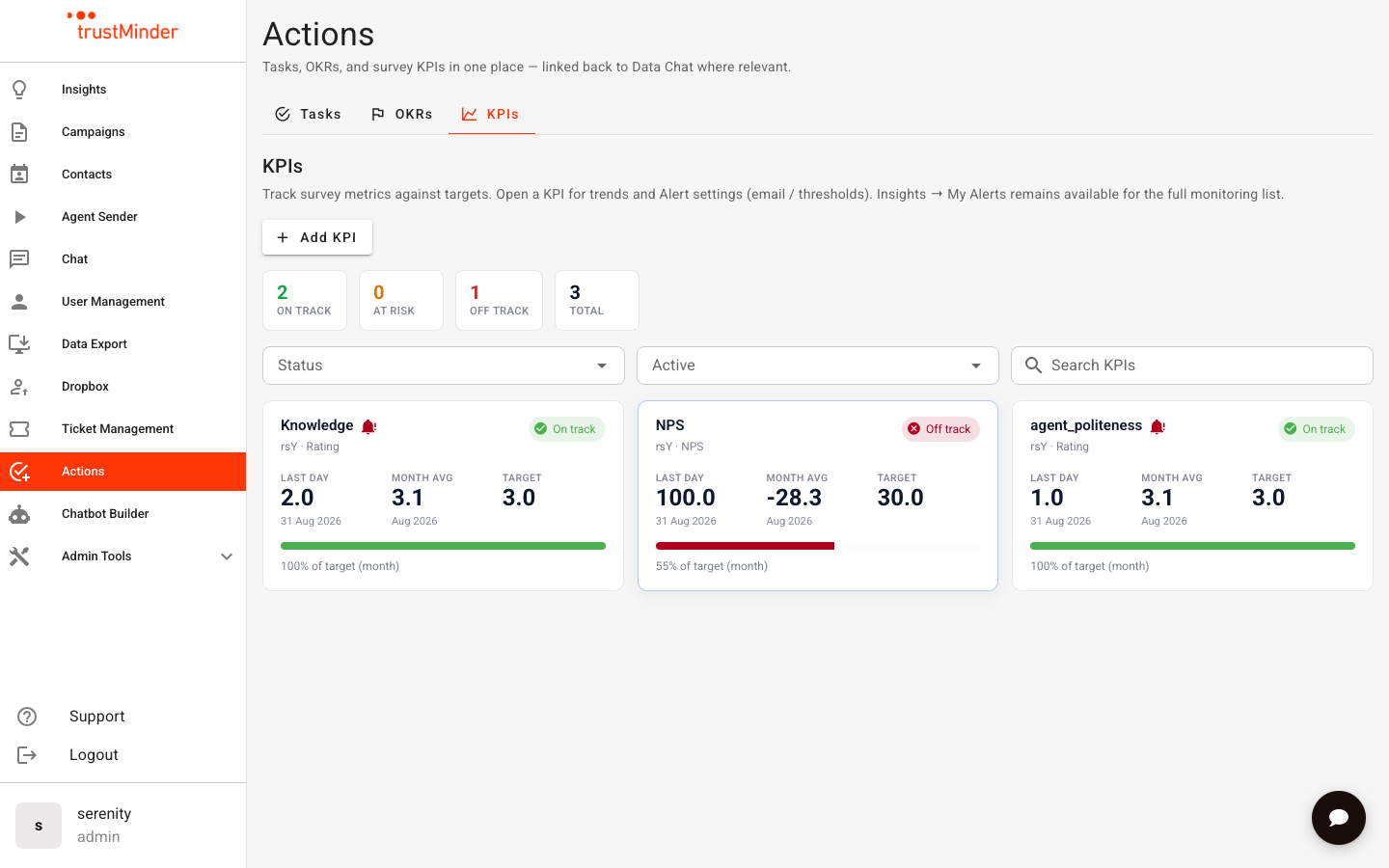
The KPIs tab shows survey metrics against targets in a board designed for action — with status, last-day score, month average, and trend sparklines. KPIs use the same underlying monitoring as Insights → My Alerts.
Open KPIs
- Go to Actions.
- Select the KPIs tab.
If the tab is disabled, your user needs the My Alerts permission. Ask an admin to enable it.
What each card shows
- Name — Display name, or the question title if no name is set.
- Status — On track / At risk / Off track, based on the month average vs your target and buffer.
- Last day — Most recent daily score and its date.
- Month avg — Average of daily scores in the current calendar month.
- Sparkline — Recent monthly trend.
- Bell icon — Appears when a monitoring breach alert is currently active.
Filter by status or active/paused, or search by name.
Add a KPI (survey question)
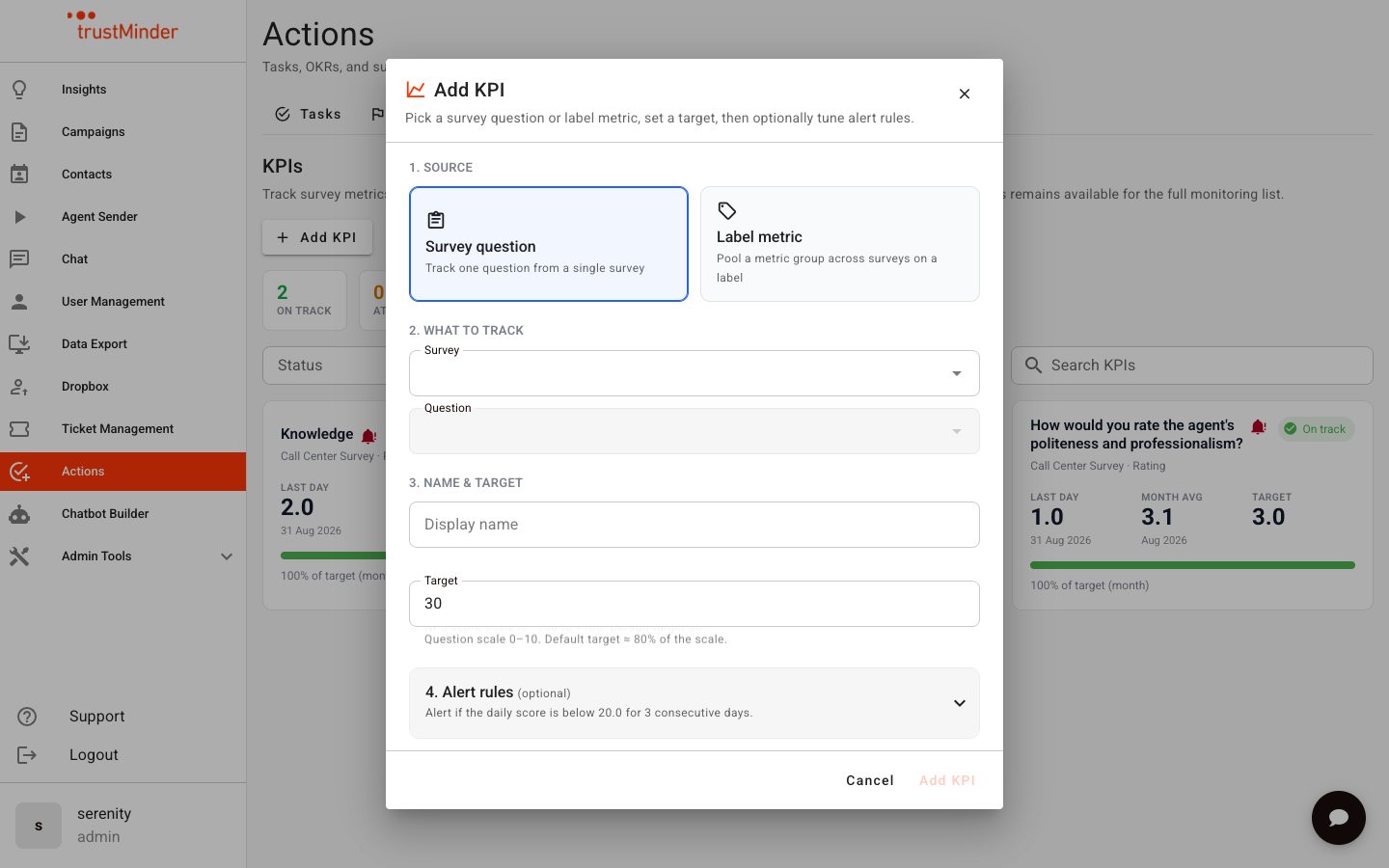
- Click Add KPI.
- Under Source, choose Survey question.
- Select the survey and rating question to track.
- trustMinder detects the metric type (for example NPS or rating) and suggests a default target.
- Optionally set a display name.
- Confirm or adjust the Target.
- Optionally expand Alert rules to tune the bad-day buffer, consecutive days before alert, and notification email.
- Click Add KPI.
When a KPI is created, recent history is backfilled so scores and trends appear immediately.
Understand alert rules
Alert rules decide when a day counts as a "bad day" and when you get notified:
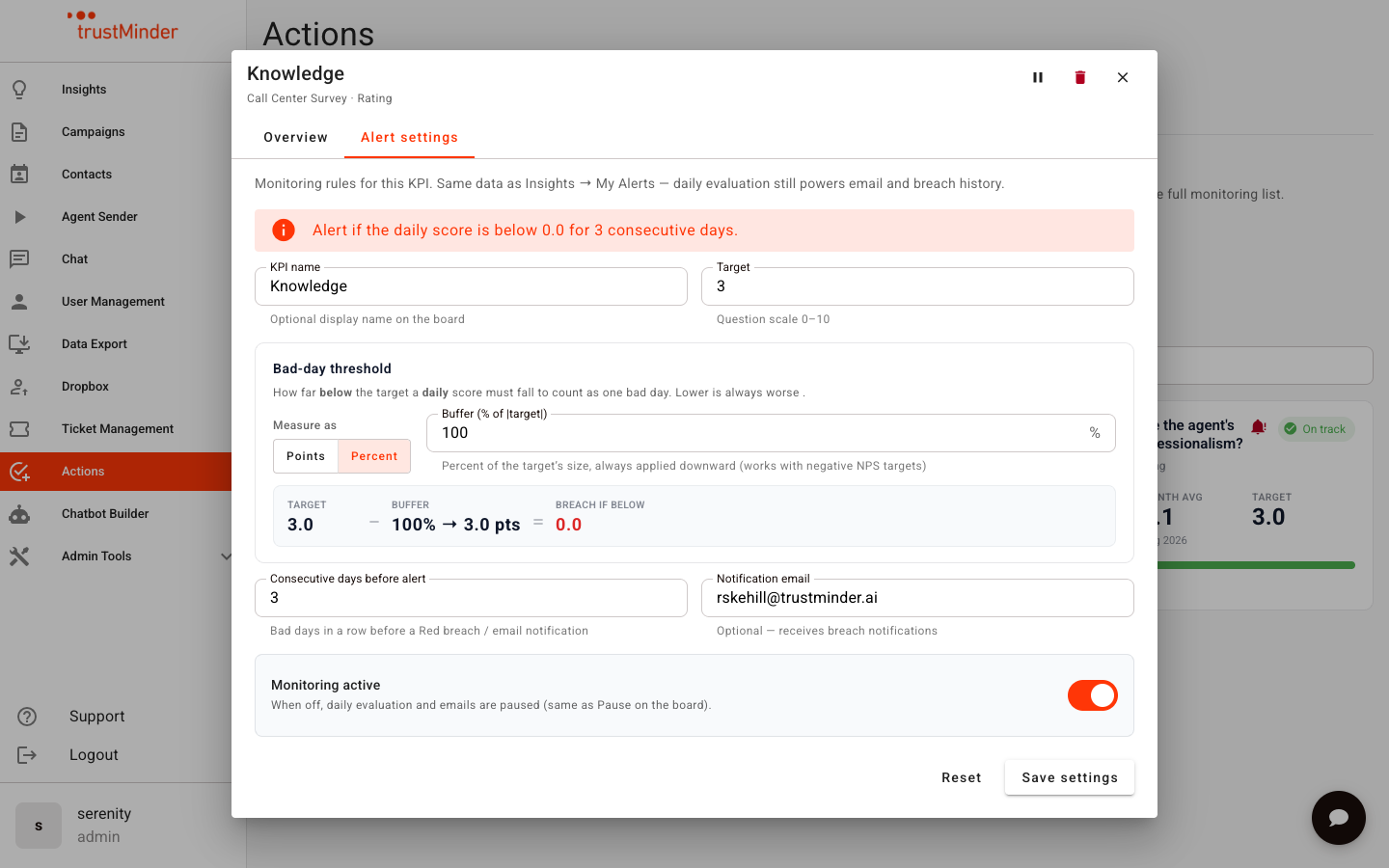
- Target — The score you want to maintain.
- Buffer — How far below the target a daily score may fall before it counts as a bad day (points or percent of |target|).
- Breach if below — The calculated line: Target minus Buffer.
- Consecutive days — How many bad days in a row trigger an email / Red monitoring state.
- Notification email — Optional address for breach emails.
Example: Target 70, buffer 5 points → breach if the daily score is below 65.
Open a KPI for detail
Click a card to open detail:
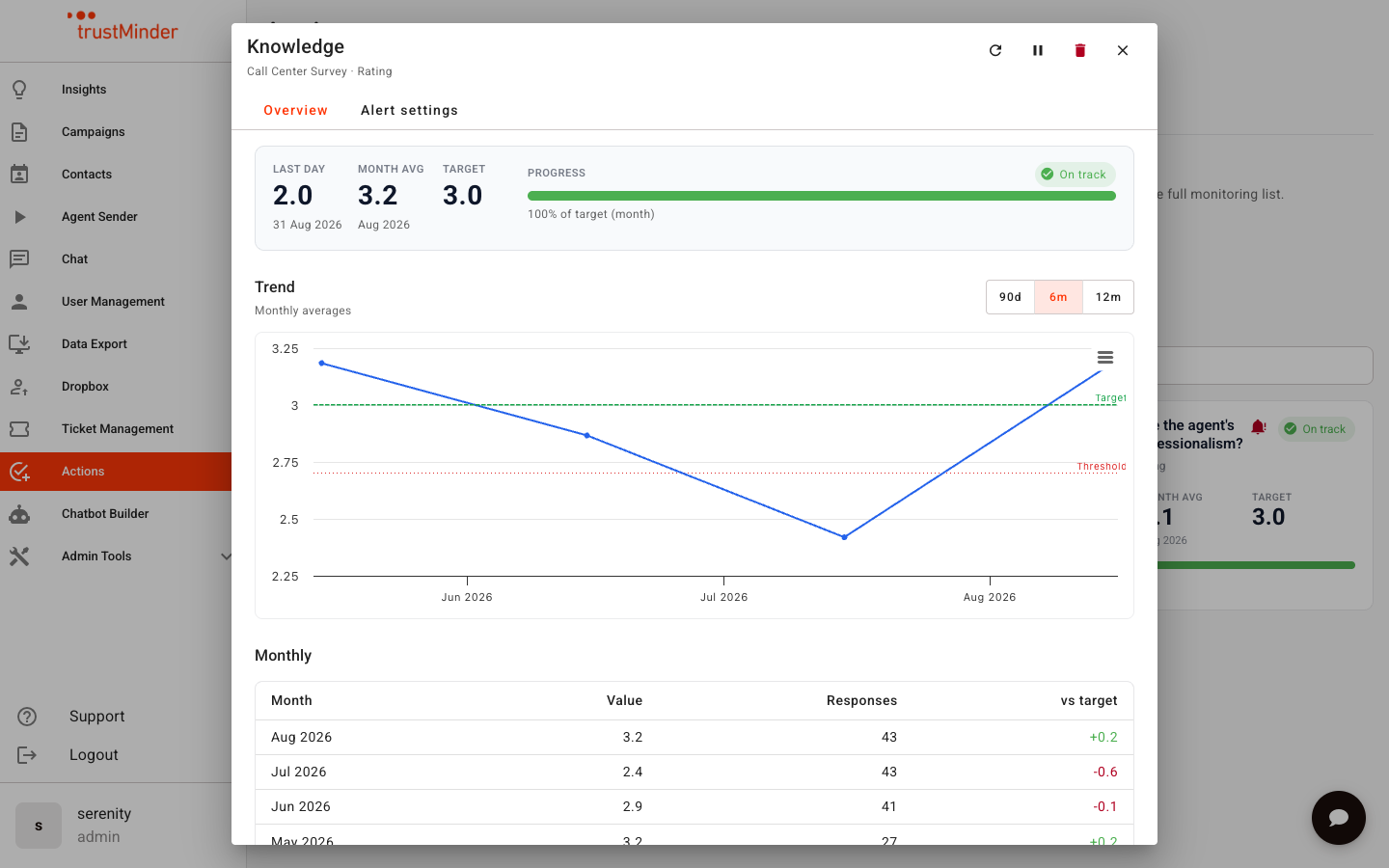
- Overview — Hero metrics, trend chart, and monthly rollup.
- Alert settings — Edit target, threshold, consecutive days, email, and whether monitoring is active.
Use Refresh scores if you need to recalculate recent history after a settings change.
Relationship to My Alerts
- KPIs and My Alerts share the same alert records.
- Actions KPIs emphasise month-average health for the board.
- Insights → My Alerts remains available as the full monitoring / ops list.
Related
- Label KPIs: Pooled Metrics Across Surveys
- Connecting Tasks, OKRs & KPIs
- My Alerts (Insights)


Was this article helpful?
That’s Great!
Thank you for your feedback
Sorry! We couldn't be helpful
Thank you for your feedback
Feedback sent
We appreciate your effort and will try to fix the article