Tasks on the Actions Page
Use Tasks to capture work, assign owners, track progress, and keep notes — including items that started in Data Chat.
Open Tasks
- Go to Actions in the main navigation.
- Select the Tasks tab (this is the default view).
Choose a view
Use the view toggle in the toolbar:
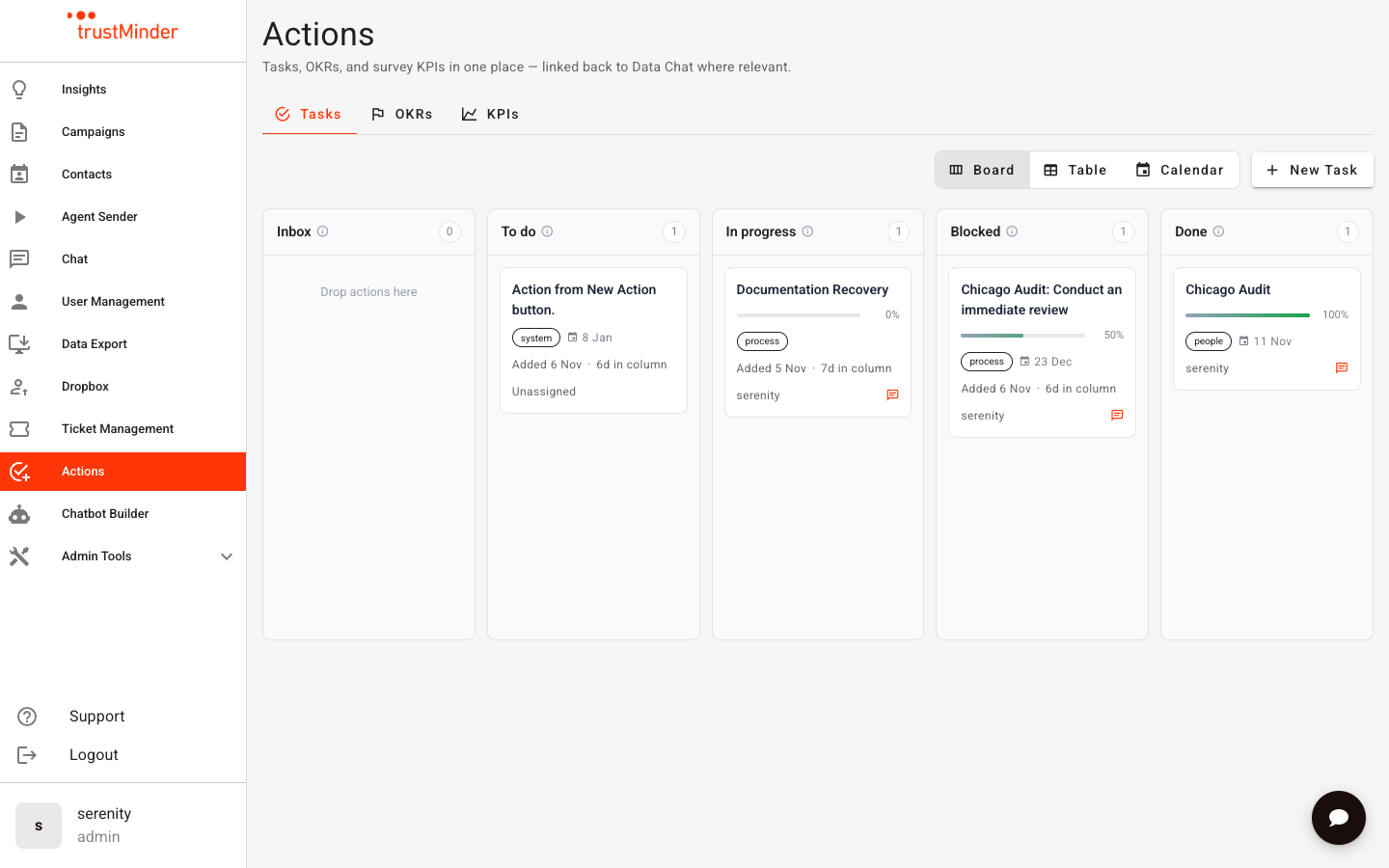
- Board — Kanban columns. Drag cards between statuses.
- Table — Sortable list with filters (status, assignee, and more).
- Calendar — Tasks that have a due date, laid out by day.
Task statuses
The board follows this flow:
- Inbox — New ideas and proposals. Keep what matters; remove the rest.
- To do — Accepted work that is ready to start.
- In progress — Actively being worked on. Progress can be tracked here.
- Blocked — Paused while waiting on a dependency or decision.
- Done — Finished.
Tip: Progress percentage applies to In progress, Blocked, and Done. Inbox and To do are triage columns, so progress is not tracked there.
Create a task
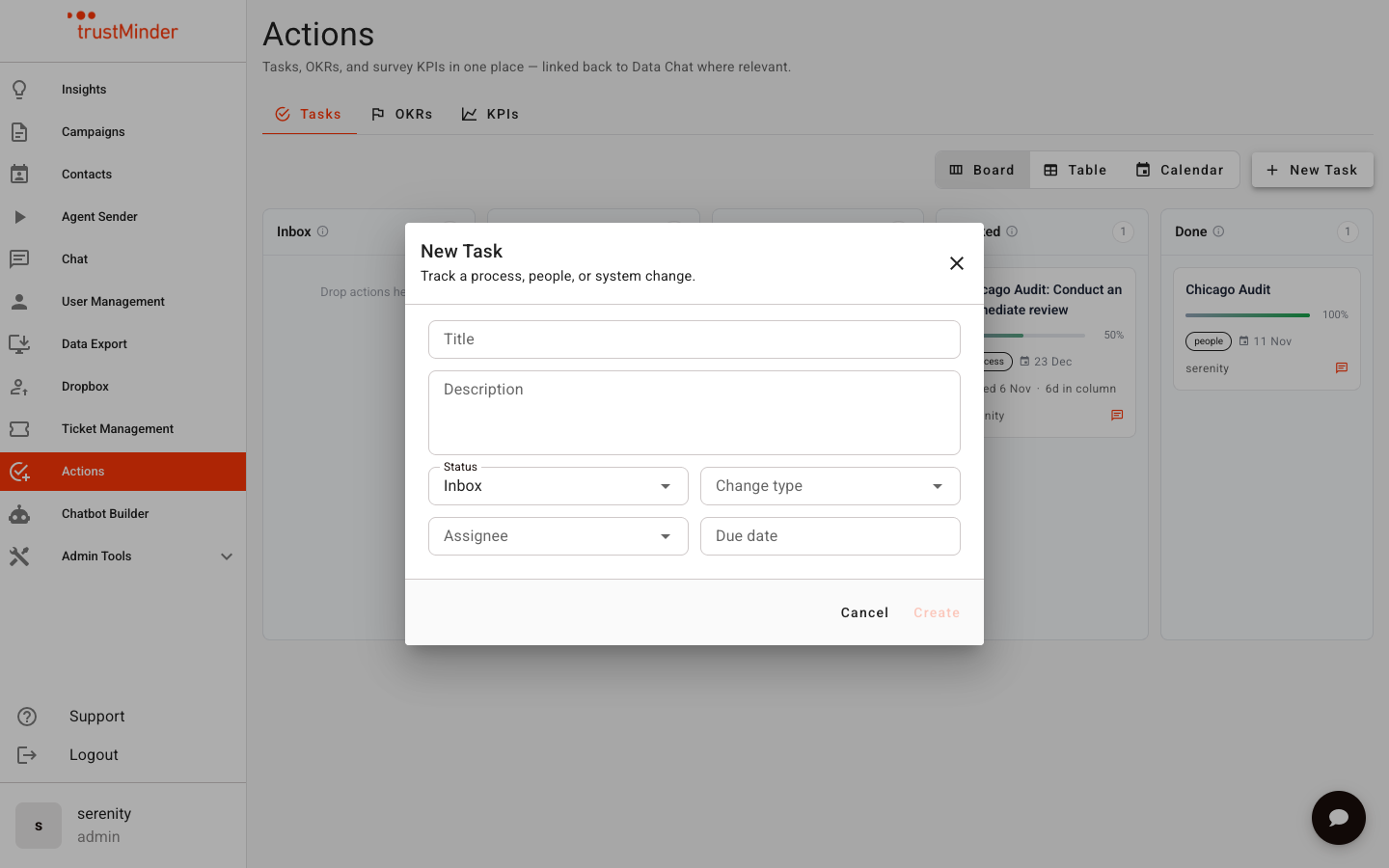
- Click New Task.
- Enter a title (required).
- Optionally add a description, status, assignee, due date, change type (process / people / system), and progress.
- Click Save (or the primary create button in the dialog).
After create, the task opens in the full detail view so you can keep editing.
Work in the task detail view
Click any task to open the full-screen detail view. From here you can:
- Edit the title and description (changes save automatically).
- Update status, assignee, due date, and change type in the sidebar.
- Set progress when the status supports it.
- Add and manage notes.
- Link the task to a key result (see Connecting Tasks, OKRs & KPIs).
- Review Data Chat source context when the task was created from a conversation.
- Delete the task if it is no longer needed.
Move work on the board
- Drag a card to another column to change its status.
- Reorder within a column to prioritise work.
Best practices
- Use Inbox for capture; promote only what you intend to do into To do.
- Keep one clear owner per task.
- Add a due date when timing matters — those tasks appear on the calendar.
- Link tasks to key results so operational work stays aligned with OKRs.


Was this article helpful?
That’s Great!
Thank you for your feedback
Sorry! We couldn't be helpful
Thank you for your feedback
Feedback sent
We appreciate your effort and will try to fix the article