Overview
Labels help you group surveys and SMS templates, then configure cross-survey metrics for My Reports, Data Chat, and exports.
Open Campaigns → Labels (or go to /campaigns/labels). The page lists every label. Expand a row to manage that label’s membership and metrics.
What you can do
- Create, rename, and delete labels
- Assign surveys and SMS templates to a label (individually or in bulk)
- Configure suggested, pooled, and custom cross-survey metrics
- See how many My Reports use each metric on a label
The Labels list
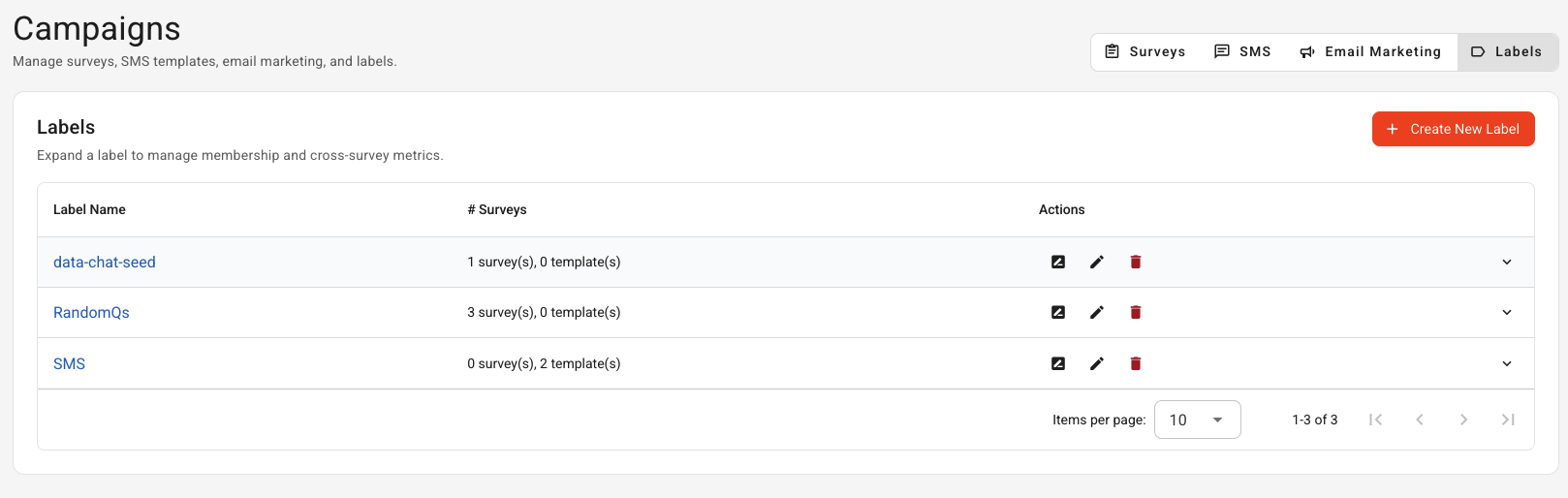
The top of the page shows the title Labels, a short subtitle, and Create New Label.
The table columns are:
- Name — click the name (or the expand / pencil controls) to open label settings
- Usage — how many survey(s) and template(s) use the label
- Actions — rename, open settings, or delete
Create a label
- Click Create New Label.
- Enter a name (required, max 50 characters). Names are case-sensitive.
- Click Create.
New labels can start with zero surveys or templates. Assign membership from the expanded view next.
Open a label (expanded view)
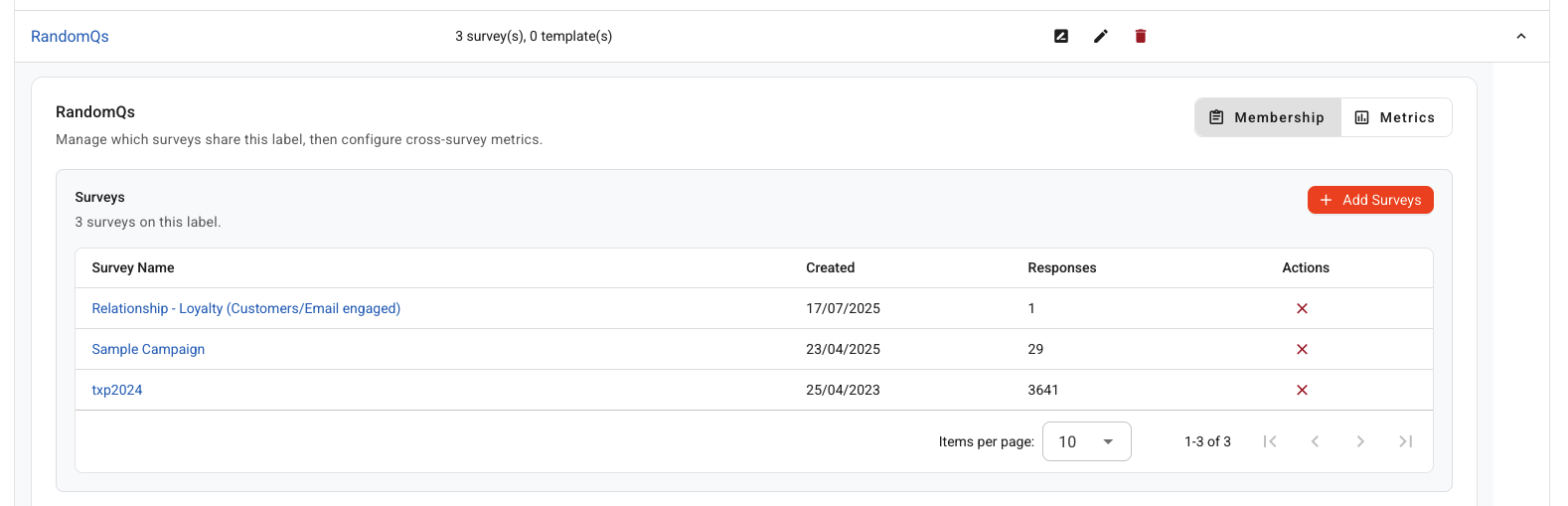
Expand a label row (click the name, expand control, or the open-settings action). The detail panel shows the label name and two tabs:
- Membership — which surveys and SMS templates share this label
- Metrics — cross-survey metric mapping for reporting
Membership tab
Use Membership to control what belongs on the label before you configure metrics.
Surveys
- See every survey on the label (name, created date, response count).
- Click a survey name to open the survey editor.
- Click Add Surveys to bulk-assign this label to one or more surveys.
- Click the red X to remove a survey from the label.
SMS templates
- See SMS templates on the label.
- Click Add Templates to assign the label in bulk.
- Click a template name to edit it, or the red X to remove it from the label.
Tip: After you add or remove surveys, open the Metrics tab and click Refresh so suggestions and custom groups stay in sync with membership.
Metrics tab
Cross-survey metrics map similar questions across surveys so they can be used together in My Reports, Data Chat, and exports.
If the label has no surveys yet, Metrics shows an empty state with a shortcut back to Membership. Add at least one survey first.
If saved My Reports already use this label, an info banner shows how many reports are affected. Chips on each metric show how many of those reports reference that metric.
Suggested groups
trustMinder proposes matches for similar yes/no and rating questions across surveys (for example the same scale style and range).
- Review each suggestion (strong or possible match).
- Click Use this group to accept it, or Dismiss to hide it for this session.
- If you dismiss everything, use Show suggestions again to restore them.
Pooled metrics
Built-in pooled metrics (such as NPS or CSAT) appear when applicable. You can rename them before saving.
Custom groups
When there is no good suggestion, create a custom group:
- Click Add group.
- Enter a Metric name.
- For each survey on the label, pick the matching question.
- Remove a group if you no longer need it.
Save metric settings
Metric edits are not live until you click Save metric settings at the bottom of the Metrics tab. Use Refresh anytime after membership changes to reload suggestions.
Rename a label
- Click the rename action on the label row.
- Update the name and click Save.
The new name applies everywhere that label is used.
Delete a label
- Click the delete action on the label row.
- Review how many surveys and templates will lose the label.
- Confirm Delete, or cancel.
Deleting a label removes it from those items. It does not delete the surveys or templates themselves. This cannot be undone.
Best practices
- Use clear, consistent names (for example by quarter, region, or programme).
- Prefer a small number of meaningful labels over many overlapping ones.
- Set membership first, then configure Metrics and save.
- After membership changes, refresh Metrics before relying on suggestions.
- Check report-usage chips before renaming or removing metrics that My Reports already use.
Quick reference
- Create — Create New Label
- Open settings — expand the row or use the open-settings action
- Membership — Add Surveys / Add Templates; remove with the red X
- Metrics — review suggestions, pooled metrics, and custom groups; then Save metric settings
- Rename / Delete — actions on the label row
If something does not look right, refresh the page and confirm the label membership before editing metrics. Contact support with the label name, what you were doing, and a screenshot if you need help.
Was this article helpful?
That’s Great!
Thank you for your feedback
Sorry! We couldn't be helpful
Thank you for your feedback
Feedback sent
We appreciate your effort and will try to fix the article